
Is .gitignore Not Working? The .gitignore Problem on GitHub and Definitive Solutions
GitHub is one of the world's most widely used platforms for code collaboration and repository management. Thanks to Git, a distributed version control system, teams can manage their projects securely and efficiently.
However, one of the common issues developers face is the .gitignore file not working. It's often assumed that GitHub ignores or only partially applies the .gitignore file. In reality, the issue is not GitHub but usually incorrect configuration or misunderstanding of how Git works.
In this article, we address the following questions step-by-step with clear solutions:
What is .gitignore?
Why does .gitignore not work?
How to fix it if .gitignore is not working?
What is .gitignore?
Git tracks all files in your project directory and categorizes each file into one of three groups:
-
Tracked Files
Files previously added to Git (git add) and committed. -
Untracked Files
Newly created files not yet added to Git. -
Ignored Files
Files you want Git to completely ignore. These files are defined in the.gitignorefile.
Commonly Ignored File Types:
-
Compiled files:
.class,.pyc,.o,.exe -
System files:
.DS_Store,Thumbs.db -
Output folders:
/bin,/out,/dist -
Dependencies:
node_modules,vendor -
IDE settings:
.idea,.vscode -
Runtime files: logs, cache files
These files are defined in a special file named .gitignore located in the project's root directory.
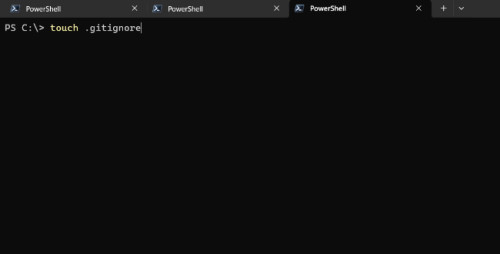
Note: Git does not have a specific command for .gitignore. You must create and edit the file manually.
Why Isn't .gitignore Working?
In most cases, .gitignore works properly; however, it may seem not to work when the following basic rules are violated.
Most Common Reasons:
-
The file has already been added to Git.
-
The
.gitignorefile is created in the wrong format. -
It is located in the wrong directory.
-
An incorrect or incomplete ignore rule has been written.
Now, let's examine these issues with definitive solutions.
1. Check the .gitignore File Format
A common issue for Windows users is saving the .gitignore file in Unicode (UTF-16) format. Git sometimes cannot read this format properly.
Solution:
-
Open the file in Notepad.
-
File → Save As
-
Encoding: Select ANSI
-
Save the file as
.gitignore(no.txtextension) -
Ensure it's in the project's root directory
Tip: On Windows, use developer editors like Notepad++ or VS Code instead of the default Notepad.
2. Check if the File to Ignore Was Previously Committed
This is the most critical point
Git only ignores untracked files.
If the file was previously added to the repository via:
-
git add -
git commit
then .gitignore will not ignore it.
Solution:
-
First, remove the file from Git:
bash
git rm --cached file_name
-
Then add it to
.gitignore.
3. Clear All Files from the Git Index and Re-add Them
If you added .gitignore rules later and many files are incorrectly being tracked, the cleanest solution is:
Always back up your project first.
Steps:
-
git rm -r --cached . -
git add . -
git commit -m ".gitignore now works properly" -
git push
This process:
-
Resets the Git index
-
Reapplies
.gitignorerules -
Commits only the correct files
The issue of .gitignore not working is not due to GitHub; it's mostly a user error. Checking the following items will resolve 99% of the problems:
-
Is the file in the correct format?
-
Is it in the project's root directory?
-
Was the file previously committed?
-
Are the rules written correctly?
A properly configured .gitignore is essential for project cleanliness and team collaboration.
- Gitignore Çalışmıyor
- .gitignore Nedir
- Github Gitignore Sorunu
- Git İgnore Dosyası
- Git İgnored Files
- Git Rm --cached
- Github Dosya Yok Sayma
- Git Untracked Files
- Git Tracked Files
- Git İgnore Kuralları
Show your reaction
- 0
- 0
- 0
- 0
- 0
- 0
- 0
- 0
- 0
- 0
- 0
- 0
- 0
- 0
- 0
- 0


Comments
Add your comment