
How to Add Seconds to the Clock Area in Windows 11?

In its default settings, the clock on the Windows 11 taskbar only shows the hour and minute. However, seeing the seconds is quite important for some users. This feature provides great convenience, especially for software developers, system administrators, and those working in time-sensitive jobs.
In this article, we explain step by step how to add seconds to the Windows 11 clock area using the most up-to-date and working methods.
Is it possible to show seconds in the Windows 11 clock?
Yes. In newer versions of Windows 11 (22H2 and later), displaying seconds is supported through settings. For older versions, the Registry method is used.
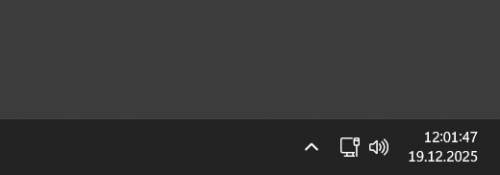
Method 1: Showing Seconds on the Clock via Settings (Recommended)
⚠️ This method is valid for Windows 11 version 22H2 and above.
Steps:
-
Open the Settings menu (Shortcut: Windows + I).
-
Go to the Personalization section.
-
Click on the Taskbar option.
-
Scroll to the bottom of the page and open the Taskbar Behaviors section.
-
Enable the "Show seconds in system tray clock" option.
-
The change is applied immediately.
The clock on the taskbar will now display the seconds.
Method 2: Showing Seconds on the Clock via Registry Editor
⚠️ Use this method if the relevant option is not visible in Settings.
Incorrect operations can cause system problems; be careful.
Steps:
-
Press the Windows + R keys.
-
Type
regeditin the window that opens and press Enter. -
Navigate to the following path:
HKEY_CURRENT_USER\Software\Microsoft\Windows\CurrentVersion\Explorer\Advanced -
Right-click on an empty area on the right side.
-
Select New > DWORD (32-bit) Value.
-
Name the value as:
ShowSecondsInSystemClock -
Double-click the value you created.
-
Enter
1in the Value data field. -
Click OK to close.
-
Restart Windows Explorer or log out and log back in.
The clock on the taskbar will now show seconds.
Are there any disadvantages to showing seconds in the Windows 11 clock?
According to Microsoft, showing seconds may:
-
🔋 Slightly increase battery consumption.
-
🖥️ Have a minimal performance impact on older systems.
However, on modern computers, this impact is negligible.
Why is adding seconds to the Windows 11 clock area important?
-
Time tracking in software development processes.
-
Server and log checks.
-
Financial transactions.
-
Live streaming and time synchronization.
Therefore, showing seconds is a critical detail for many users.
Adding seconds to the clock area in Windows 11 is quite easy. If you are using the latest version, you can enable seconds via Settings; for older versions, use the Registry method. This small but functional setting makes time management much more efficient.
Alakalı İçerikler
-
How Many GB of RAM Does Your Computer Support? The Secret Way to Learn Without Programs 6 Ay önce
Before buying new RAM for your computer, learn the maximum RAM support of your motherboard. Discover step by step how to find out the maximum RAM capacity quickly and without programs using the Windows CMD command system.

-
Instant Guide to Detecting Windows Slowdown Issues 8 Ay önce
It is a hidden system diagnostic tool used to quickly analyze performance issues on Windows computers. Thanks to its 60-second detailed analysis, bottlenecks in RAM, processor, and disk are clearly reported.

-
Windows’ta İşlemci Performans Ayarları - Memory Management Agent (MMAgent) İşlevi 10 Ay önce
Windows işletim sisteminde bellek yönetimi, sistem performansını doğrudan etkileyen en önemli unsurlardan biridir. Bu yönetimi optimize etmek amacıyla Microsoft, Windows 8 ve sonraki sürümlerde Memory Management Agent (MMAgent) bileşenini devreye almıştır.

-
Windows da Hayalet Klasör (Gizli ve Görünmeyen) Nasıl Yapılır? 1 Yıl önce
Kişisel dosyalarınızı saklamanın en yaratıcı yollarından biri, bir hayalet klasör oluşturmaktır. Bu tür klasörler, görünmez olup genellikle bilgisayarın başka bir kullanıcısı tarafından fark edilmez. Windows işletim sisteminde birkaç basit adımla görünmez ve gizli bir klasör oluşturabilirsiniz.

-
Tüm Windows'larda God Mode Etkinleştirme ve Özellikleri 1 Yıl önce
Windows God Mode, kontrol paneli ayarlarını bir listede açıkça görüntüler ve merkezi bir masaüstü kısayolu aracılığıyla erişimi basitleştirir. Windows God Mode'un nasıl etkinleştirileceğini ve bununla neler başarabileceğinizi açıklıyoruz.

- Windows 11
- Saniye
- Saat
- Regedit
Show your reaction
- 3
- 4
- 1
- 1
- 0
- 0
- 0
- 0
- 0
- 0
- 0
- 0
- 0
- 0
- 0
- 0


Comments
Add your comment